Connect your car rental system to QuickBooks Online and treat the rental platform as the operational source of truth while QuickBooks handles the finalized financial record. That single design decision resolves most of the reconciliation headaches rental managers encounter. For the majority of businesses, a one-way sync pushing invoices, payments, and credit memos from the rental system into QuickBooks Online is the right starting point. Invoice-based revenue recording in QuickBooks gives you clean accrual-ready books without the complexity of two-way sync. One firm prerequisite: QuickBooks Online is required. Most rental platform integrations do not support QuickBooks Desktop without additional utilities, so confirm your QBO subscription is active before you begin.
Key Takeaways
A successful QuickBooks integration for car rental businesses requires one-way invoice sync, clean account mapping, and a short pilot before going live.
| Point | Details |
|---|
| QuickBooks Online is required | Desktop versions are not supported by most rental integrations; confirm your QBO subscription first. |
| One-way sync is the right default | Push invoices, payments, and credits from the rental system to QBO; avoid two-way sync unless your workflow demands it. |
| Account mapping is the critical step | Map daily revenue, insurance, fees, and deposits to separate Chart of Accounts lines to keep month-end reconciliation clean. |
| Run a full test before going live | Test a standard invoice, a partial payment, a credit memo, and a cancellation before processing real transactions. |
| Nomora onboarding runs in 24–48 hours | Guided setup, prebuilt mapping templates, and sync logs are included to reduce reconciliation effort from day one. |
Table of Contents
How does QuickBooks integration work for rental businesses?
Think of your rental platform as the central nervous system of the operation. Reservations, fleet status, contracts, and customer records all live there. QuickBooks receives the financial output of that activity: finalized invoices, recorded payments, credit memos, and customer entries. The two systems have distinct jobs, and keeping those jobs separate is what makes the integration reliable.
One-way vs. two-way sync
Most QuickBooks integrations for rental businesses use a one-way flow: the rental system pushes data to QuickBooks, and QuickBooks does not write back to operational records. This protects data integrity. A payment recorded in QuickBooks will not accidentally alter a reservation status, and an invoice edited in QuickBooks will not overwrite the rental contract.
Two-way sync is available with some configurations and can be useful when your accounting team needs to apply payment updates or tax adjustments that then reflect in the rental system. The tradeoff is real: two-way behavior increases the risk of conflicting edits and requires tighter permissions management. For most rental managers, one-way sync is the right call.
| Sync Mode | Data Direction | Best For | Key Risk |
|---|
| One-way (rental → QBO) | Invoices, payments, credits push to QBO | Most rental businesses | QBO edits do not reflect in rental system |
| Two-way | Bidirectional updates | Businesses with QBO-driven payment workflows | Conflicting edits, higher complexity |
When to choose two-way sync: only when your workflow requires QuickBooks-driven edits to affect operational records. That scenario is uncommon for independent and mid-size rental operators. The real-time operational data that drives fleet decisions should stay in the rental platform, not be managed through accounting software.
What data actually syncs, and what stays in the rental system?
Setting accurate expectations before you connect saves hours of troubleshooting later. Here is what typically moves across the integration and what does not.
Records that usually sync:
- Finalized invoices with itemized line items (daily rate, insurance, fees)
- Customer payments and payment method records
- Customer profiles (name, contact details, billing address)
- Credit memos and refunds
- Deposits applied to invoices
Records that typically do not sync:
- Sales tax rates and tax rules (you configure these directly in QuickBooks; see the QuickBooks sales tax setup guide)
- Fleet utilization data, vehicle IDs, and GPS tracking records
- In-progress reservation state or real-time availability
- Complex operational metadata such as damage reports or maintenance logs
For fleet-level reporting, your rental platform remains the right place to look. Fleet reporting essentials like utilization rates and vehicle-level P&L belong in the rental system, not in QuickBooks.
Sync timing matters. Most cloud integrations push data in near-real time, but only for orders created or updated after the connection is established. Orders that predate the integration will not appear in QuickBooks automatically. Most platforms offer a resubmit function to push historical records, but you must trigger it manually. Also watch for QuickBooks Desktop: many rental integrations explicitly exclude it, relying on OAuth to connect to QuickBooks Online only.
How do you set up the QuickBooks Online connection step by step?
A clean setup follows a preflight checklist, a connection sequence, and a test run before any live transactions go through.
Preflight prerequisites
- QuickBooks Online account with admin-level credentials
- Consistent customer naming rules between the rental system and QBO (mismatches cause duplicate customer records)
- Invoice numbering plan that avoids collisions with any existing QBO invoice series
- Chart of Accounts reviewed and ready for mapping
- A sandbox or test company in QBO if available
Connection steps
- Log into your rental platform and navigate to the integrations or accounting settings panel.
- Select QuickBooks Online and click the authorization button to launch the OAuth flow.
- Sign into your QBO account when prompted and grant the requested permissions.
- Choose your sync settings: invoice-based recording is recommended over sales receipts or deposits for accrual accuracy.
- Map each revenue and fee type to the correct Chart of Accounts line (see the mapping section below).
- Enable payment sync if you want payment records to appear in QBO automatically.
- Set your customer match rule: match by email address or by name, and pick one method consistently.
- Save settings and confirm the connection status shows as active.
The Nomora integration guide covers mapping templates and configuration steps that reduce reconciliation effort during onboarding.
Test transaction checklist
- Create a test reservation and finalize the invoice in the rental system.
- Confirm the invoice appears in QuickBooks with correct line items and amounts.
- Record a test payment against that invoice and verify it matches in QBO.
- Issue a test credit memo or cancellation and confirm the reversal appears in QBO.
- Check that the customer record created in QBO matches the rental system entry exactly.
Pro Tip: Run your test transactions in a QBO sandbox company before connecting to your live books. If a sandbox is not available, create a clearly labeled test customer and void all test transactions immediately after verification.
How should you map rental revenue to your chart of accounts?
Proper account mapping is the most critical step in any QuickBooks integration for car rental operations. Mapping all revenue to a single "Rental Income" line makes month-end reconciliation painful and obscures which parts of the business are profitable. Separate accounts give you clean financial statements.
Recommended account mappings
| Revenue or Fee Type | Suggested QBO Account | Account Type |
|---|
| Daily rental revenue | Rental Revenue — Daily | Income |
| Long-term rental revenue | Rental Revenue — Long-Term | Income |
| Insurance / damage waiver | Insurance / Waiver Income | Income |
| Late fees and cleaning charges | Other Rental Fees | Other Income |
| Damage charges | Damage Recovery Income | Other Income |
| Merchant processing fees | Payment Processing Fees | Expense |
| Customer deposits / security holds | Customer Deposits Payable | Liability |
Handling deposits and merchant fees
Deposits and security holds are liabilities until they are applied to an invoice or refunded. Map them to a Customer Deposits Payable account, not to income. When the deposit is applied at checkout, a journal entry or payment application moves the amount from the liability to the invoice. Your accountant should confirm the exact treatment based on your state's requirements.
Merchant processing fees deserve their own expense account. If your payment processor nets fees from deposits before transferring funds, reconcile against the gross invoice amount in QBO and record the fee separately. Failing to do this is one of the most common sources of duplicate revenue entries.
Pro Tip: If you operate multiple locations, activate QuickBooks Classes or Locations and assign each rental location to a class. Map revenue accounts at the class level from day one. Retrofitting class assignments after months of transactions is time-consuming and error-prone.
For corporate or B2B rental programs, corporate vehicle rental solutions often require project-level or department-level mapping in QuickBooks, which the Classes feature handles well.
How do you verify the integration is working correctly?
Verification before month-end close prevents surprises at tax time. Run each of these test cases and check the results against your rental system records.
Test cases to run
- Basic invoice and full payment: create a reservation, finalize the invoice, record full payment. Confirm both appear in QBO with matching amounts.
- Partial payment (deposit then final balance): record a deposit, then the remaining balance at return. Confirm QBO shows two payment entries against one invoice, not two separate invoices.
- Invoice edit after sync: edit a line item on a synced invoice and re-sync. Confirm QBO reflects the updated amount, not a duplicate.
- Credit memo and refund: issue a refund in the rental system. Confirm a credit memo appears in QBO linked to the original invoice.
- Canceled reservation: cancel a reservation and confirm the reversal or void appears in QBO without leaving an open invoice balance.
Verification checklist
- Compare total revenue in the rental system report against QBO income for the same period.
- Confirm customer records match exactly (no duplicates caused by name or email mismatches).
- Check invoice numbers for collisions with any pre-existing QBO invoice series.
- Verify merchant fees appear as expenses, not as revenue reductions.
- Confirm bank deposits in QBO do not double-count revenue already recorded via synced invoices.
Reading sync logs
Most integrations surface a sync log showing each record's status: synced, pending, or failed. Review the log after each test run. A failed record usually shows an error code pointing to the root cause, such as a duplicate invoice number or a missing account mapping. Re-sync individual records from the log rather than re-running the full sync, which can create duplicates.
What are the most common integration problems and how do you fix them?
A handful of issues account for the majority of reconciliation headaches in car rental accounting software setups.
Duplicate revenue from bank deposits: QuickBooks sometimes records a bank deposit as income when the same revenue was already captured via a synced invoice. Fix this by removing any automatic "deposit as income" bank rules in QBO and reconciling deposits against existing invoices instead.
Invoice number conflicts: if your rental system and QBO share an invoice number series, collisions will cause sync failures. Assign a prefix to rental system invoices (for example, "RS-" before the number) so the two series never overlap.
Special characters in customer names: ampersands, apostrophes, and accented characters in customer names frequently cause sync errors. Standardize naming conventions in the rental system before connecting, and strip special characters from test records first.
Accounting method mismatch: running cash-basis reports in QBO while the rental system reports on accrual produces totals that will never reconcile. Pick one method and apply it consistently across both systems.
Quick fixes by issue type:
- Duplicate revenue: remove automatic deposit-as-income bank rules; reconcile deposits to invoices manually.
- Invoice conflicts: add a prefix to rental system invoice numbers before connecting.
- Special characters: audit and clean customer names in the rental system before the first sync.
- Accounting method mismatch: set QBO reporting basis to match the rental system and document the choice.
- Historical orders missing: use the resubmit function in the integration panel to push pre-connection orders.
Support escalation template
When contacting support about a failed sync, include: the order ID, a screenshot or copy of the sync log entry, the customer name as it appears in both systems, the timestamp of the failed sync attempt, and the account mapping currently assigned to that transaction type. This information cuts resolution time significantly.
What operational rules keep your books clean after integration?
The integration itself is only as reliable as the habits around it. A few standing rules prevent the most common recurring errors.
- Finalize invoices in the rental system first. Never create an invoice in QuickBooks for a transaction that originated in the rental system. QuickBooks is the financial record, not the originating system.
- Pick one accounting method and document it. Cash or accrual: choose based on your business size and tax situation, confirm with your accountant, and apply it everywhere.
- Align merchant statement timing. If your processor sends monthly statements, reconcile QBO against those statements monthly. Misaligned timing is a common source of apparent discrepancies that are actually just timing differences.
- Limit who can authorize the QBO connection. Treat the OAuth authorization as an admin-only action. Require written approval before anyone changes account mappings, because a remapped account affects every future transaction in that category.
- Avoid editing synced invoices in QuickBooks. If a correction is needed, make it in the rental system and re-sync. Edits made directly in QBO will be overwritten on the next sync or will create a conflict.
The rental software features that handle automated contracts and damage tracking are designed to stay in the rental platform, not flow into QuickBooks. Keeping operational data where it belongs protects both systems.
How does Nomora connect to QuickBooks Online?
Nomora's car rental management platform connects to QuickBooks Online through an OAuth-based authorization that takes minutes to complete. The typical onboarding window from authorization through mapping and pilot testing runs 24–48 hours, with guided setup available throughout.
Fields synced from Nomora to QuickBooks Online:
- Finalized invoices with itemized line items
- Customer payments (full and partial)
- Customer profiles
- Credit memos and refunds
- Deposits applied to invoices
Operational data, including fleet utilization, GPS tracking records, vehicle IDs, and reservation state, remains in Nomora. QuickBooks receives only the finalized financial output.
Onboarding benefits:
- Prebuilt account mapping templates for daily rental revenue, insurance income, late fees, and damage charges
- Dedicated mapping assistance during the pilot phase
- Sync logs accessible from the Nomora dashboard for real-time troubleshooting
- Fast support access for failed syncs or mapping questions
Nomora's cloud hosting and security posture mean the QBO connection runs over encrypted OAuth tokens with no stored passwords. Permission management for the QuickBooks connection is controlled at the admin level within Nomora, so you decide who can authorize, modify, or revoke the integration. The platform's use-case coverage spans independent operators, luxury fleet managers, and corporate rental programs, each with slightly different mapping needs that the onboarding team can address during setup.
Pro Tip: During the Nomora pilot, run at least one of each transaction type: a standard rental invoice, a partial deposit followed by a final payment, and a cancellation with refund. Catching a mapping gap on a test transaction costs nothing. Catching it after three months of live data costs a full reconciliation.
The case for getting the architecture right before you go live
Most rental managers who struggle with QuickBooks reconciliation share one thing in common: they connected the integration before deciding which system owns what. The result is invoices created in both places, payments recorded twice, and a month-end close that takes days instead of hours.
The architecture is simple when stated plainly. The rental platform handles everything that happens before money is confirmed: reservations, contracts, fleet assignments, damage notes. QuickBooks handles everything after: the invoice that goes to the customer, the payment that closes it, and the report that goes to the accountant. When those boundaries are clear and enforced through permissions, the integration runs quietly in the background and the books stay clean.
What gets underestimated is the account mapping step. Rental businesses have revenue streams that generic accounting templates do not anticipate: insurance waivers, cleaning fees, damage recovery, security deposits that may or may not convert to income. Mapping all of that to a single "Rental Income" line is technically functional but practically useless for any meaningful financial analysis. The extra thirty minutes spent building a proper Chart of Accounts at setup pays back every month-end for as long as the business runs.
Nomora makes the QuickBooks sync straightforward from day one
Running a car rental business means managing reservations, fleet, contracts, and payments simultaneously. Nomora handles all of that in one place and pushes the finalized financial data to QuickBooks Online automatically, so your accountant gets clean books without manual data entry.
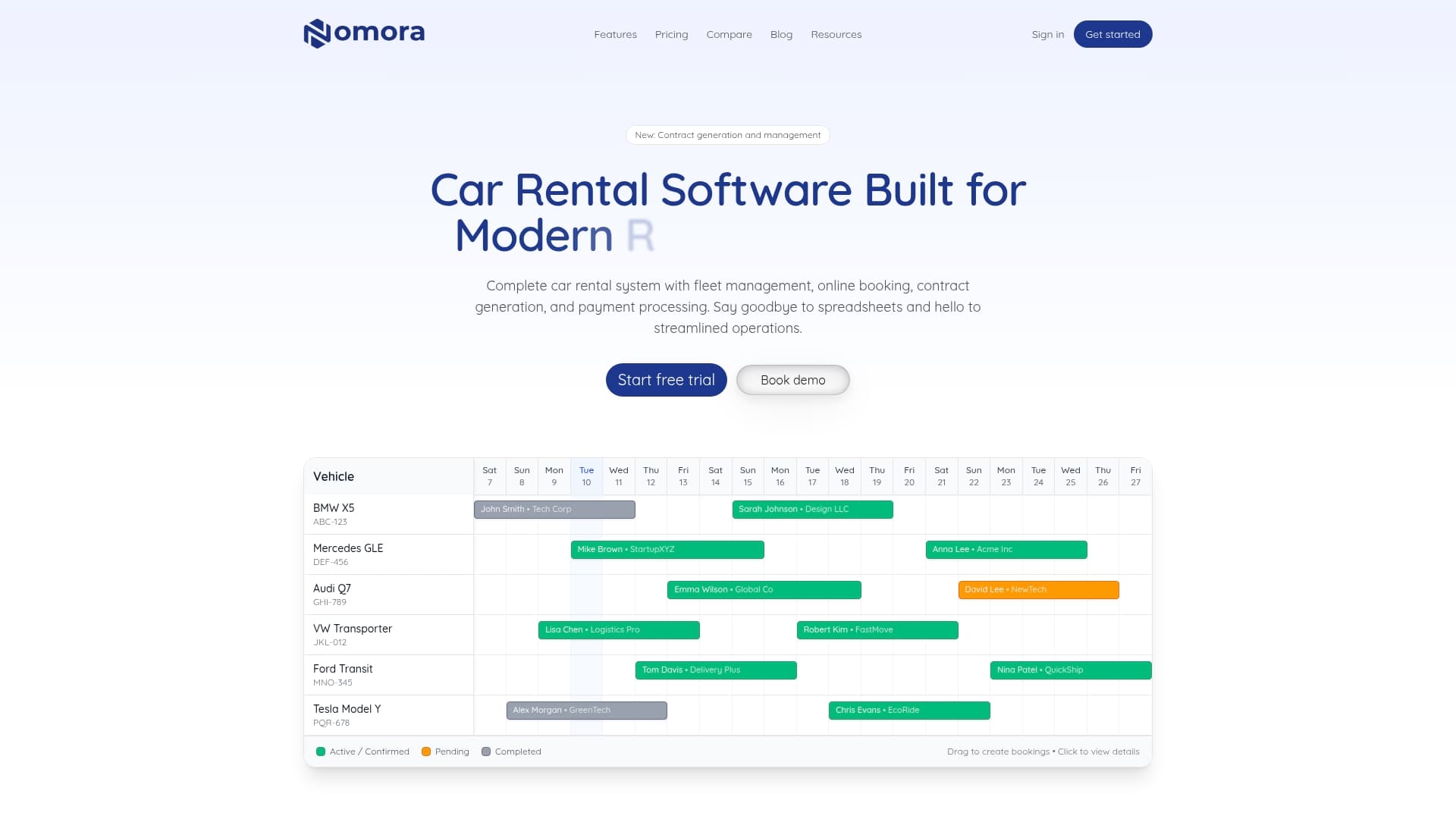
The onboarding process typically completes within a few days with guided mapping assistance, prebuilt templates for rental revenue categories, and sync logs you can monitor from the Nomora dashboard. Whether you operate a single-location independent fleet or a multi-site corporate program, Nomora's QuickBooks integration is configured to your specific revenue structure, not a generic template.
Ready to see the sync in action? Visit the Nomora use cases page to find your business type and book a guided demo.
Sources
Use these resources while configuring your integration, setting up tax rates, and verifying account mappings.
QuickBooks Official Resources:
Nomora Documentation and Guides:
Recommended